
Components

Voltage Source
R Load
SoC Multi-Port Load
Linear Regulator
SMPS (Buck/Boost)
+ − Op-Amp
Resistor
Fuse
Inductor
Diode
Zener Diode
Ground
Off-Page
Text Box
bolt

Power Budget

expand_less
Source Power 0 W
Load Power 0 W
Dissipation 0 W
Efficiency —
layers

Efficiency Breakdown

expand_less
Stage Type Vin Vout Iout Pdiss η

No stages to display

warning

Warnings

0 expand_less

No warnings — system healthy ✓

inventory_2 BOM Pricing Quantity
calculate Calculators menu_book Articles
lock View Only

Keyboard Shortcuts

Selection

Click Select node
Shift+Click Add to selection
Ctrl+A Select all
Drag on canvas Selection box

Edit

Ctrl+C Copy
Ctrl+V Paste
Ctrl+X Cut
Ctrl+D Duplicate
Delete Delete selected

History

Ctrl+Z Undo
Ctrl+Y Redo

Canvas

Scroll Zoom in/out
Middle-click drag Pan
Alt+Drag Pan

🔍 Find Parts

— — — — — —

Part Filters

Distributor MPN Mfg Vin Vout Imax Pkg Price Stock
Advertisement

Supporting free users

⚙️ Settings

Required for AI-powered part recommendations and datasheet parsing.


📄 Document Settings


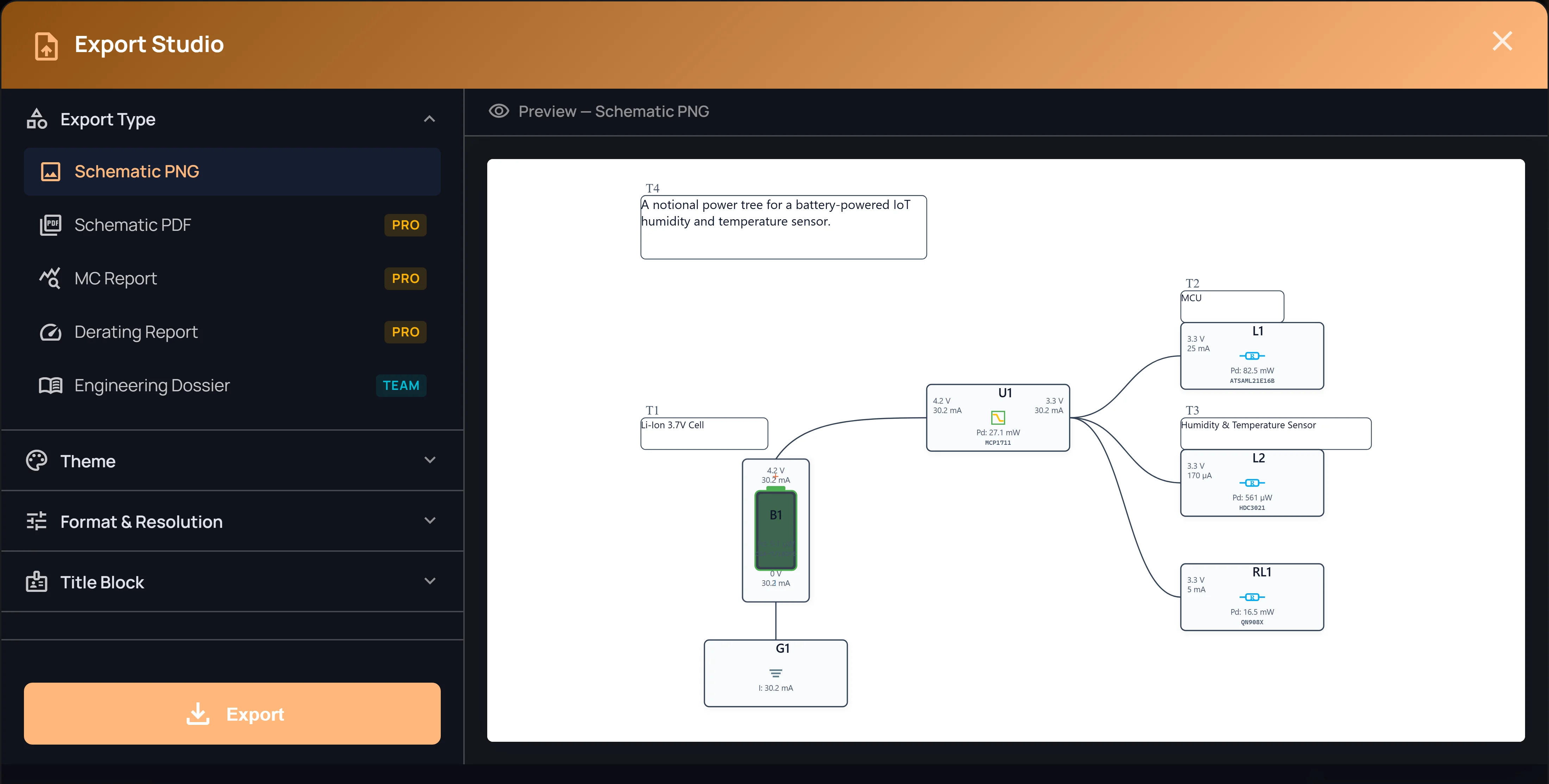
Export Options

Properties

Select a component to edit properties

build Architecture Suggestions

Analyzing architecture...
error_outline
description Analysis

Suggestions

shield AI analysis powered by Gemini. Design data processed securely and not stored.
lock

AI Limit Reached

You've used your free AI analysis for this month. Upgrade to Pro for 25 AI-powered design insights per month.


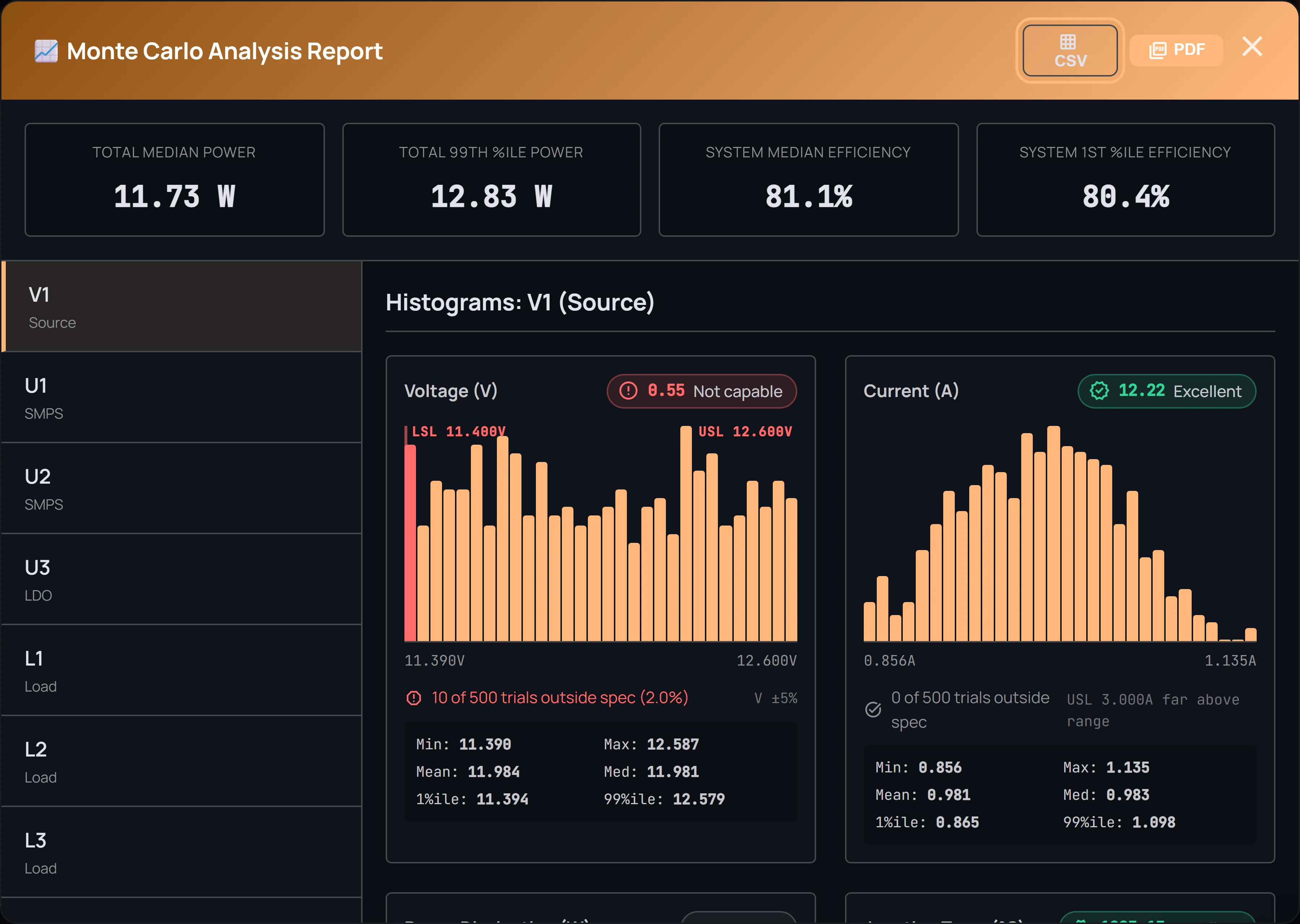
📈 Monte Carlo Analysis Report

Total Median Power
—
Total 99th %ile Power
—
System Median Efficiency
—
System 1st %ile Efficiency
—

Select a component to view histograms

Voltage (V)

Current (A)

Power Dissipation (W)

Junction Temp (°C)

Sign In

Sign in to save designs to the cloud, sync across devices, and unlock Pro features.

or

👤 Account Settings

User Name

email@example.com

Signed in with Google

Current Plan: Free

3 Cloud Saves limit. Ad-supported. Standard analysis.

credit_card Manage or cancel subscription

Unlocks unlimited cloud saves, removes ads, and enables advanced analysis features.

Create a shared team workspace for collaborative designs. Includes all Pro features.


admin_panel_settings Test Mode (Superuser)

Toggle between Free and Pro tiers for testing. All limits bypassed regardless.


🛟 Customer Support

Need help? Choose an option below to manage your account or get in touch with our team.

credit_card
Manage Subscription
View billing, update payment, or cancel your plan
chevron_right
mail
Contact Support
Email our team for help with any issue
chevron_right
help
FAQ & Help Center
Common questions about features and billing
chevron_right
person_remove
Delete Account
Permanently delete your account and all data
chevron_right

mail Contact Our Team

Send us an email and we'll get back to you within 24 hours.

alternate_email ea.support@horton-labs.com

Include your account email so we can look up your account.

warning This action is irreversible

All your cloud designs, account data, and subscription will be permanently deleted. Type your email address below to confirm.

📖 Help Center

Welcome to DC Power Architect! This guide walks you through every feature, from placing your first component to running advanced Monte Carlo analysis.

1

Getting Started

Interface overview and first steps

expand_more

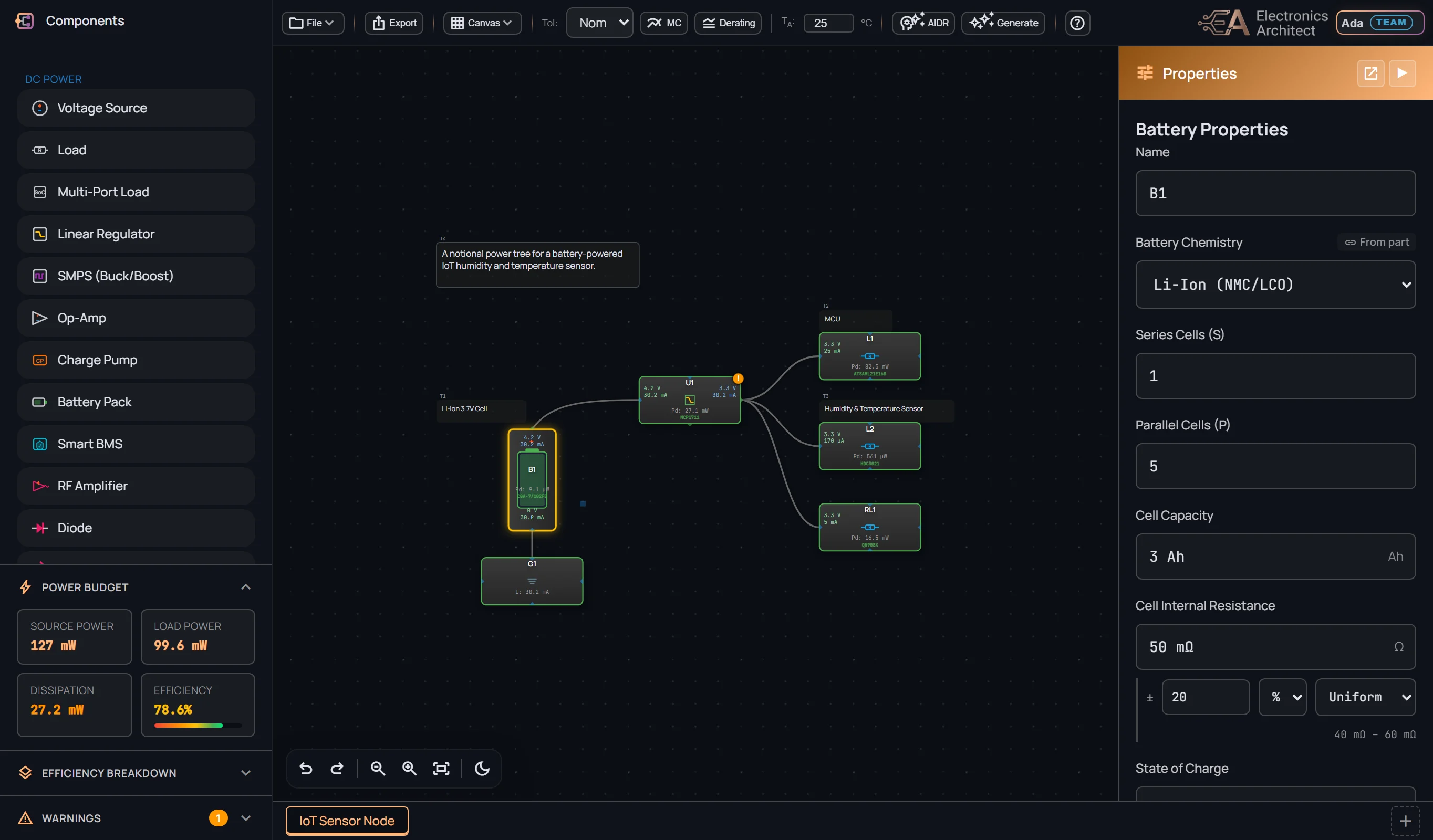
DC Power Architect helps you design, analyze, and optimize DC power distribution networks. Here's the layout:

Application layout overview
  • Component Library (left sidebar) — Drag components onto the canvas: voltage sources, loads, LDO regulators, SMPS converters, op-amps, passives, and more.
  • Canvas (center) — Your design workspace. Place components, draw wires, and build your power tree.
  • Toolbar (top) — Quick actions: undo/redo, zoom, save/load, export, alignment tools, and analysis modes.
  • Analysis Panel (below components) — Live power budget, efficiency breakdown, and system warnings.
  • Properties Panel (floating, right side) — Edit the selected component's voltage, current, thermal, and other parameters.
lightbulb Press ? at any time to view all keyboard shortcuts.
2

Placing & Connecting Components

Drag-drop components, draw wires, select and move

expand_more

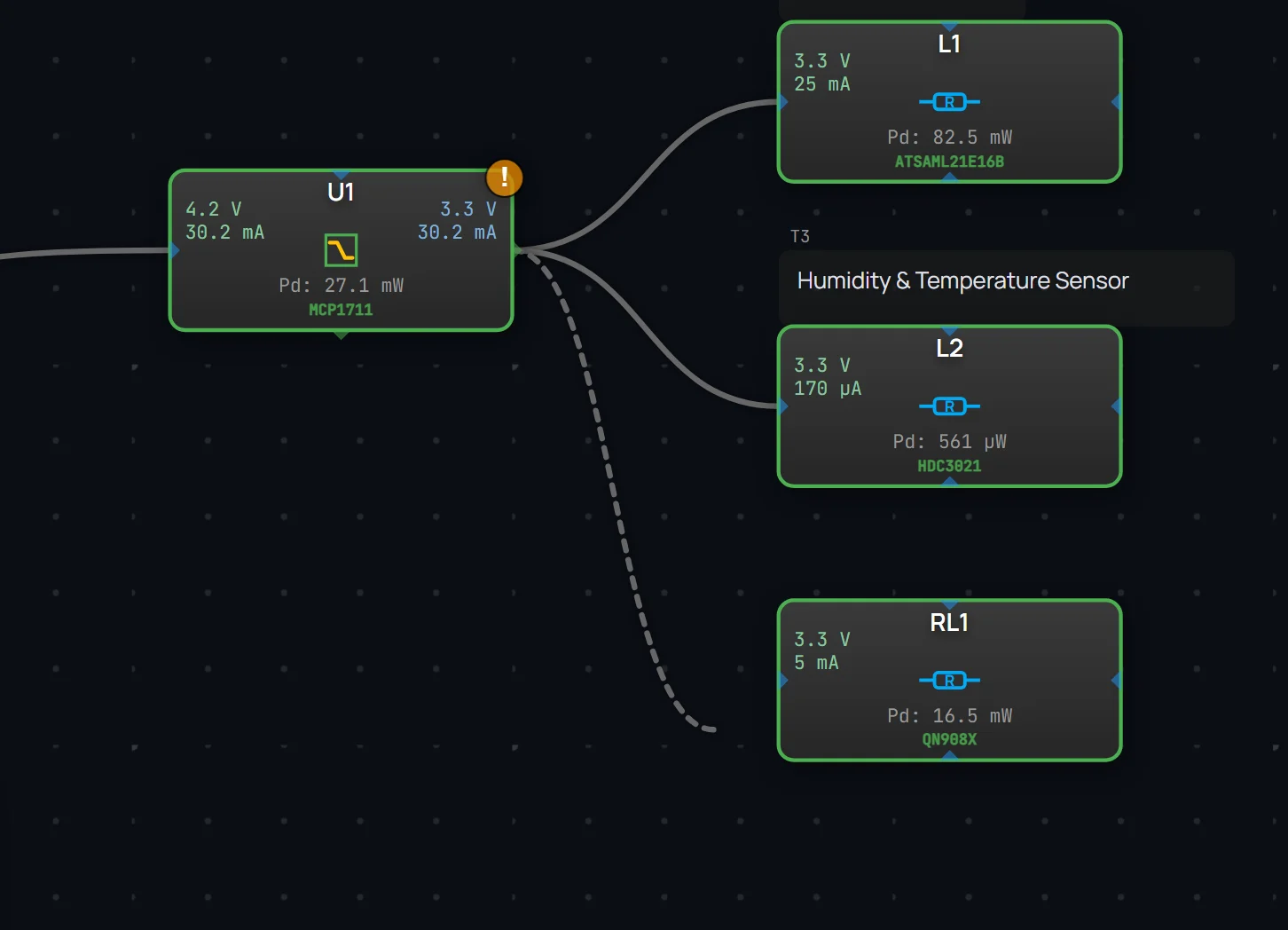
Building a power tree is as simple as drag, drop, and wire:

  • Add a component — Drag any item from the sidebar and drop it onto the canvas. You can also double-click a component in the sidebar to place it.
  • Draw a wire — Click the output port (small circle on the right side of a block), then click the input port of another block. The wire snaps automatically.
  • Select — Click a component to select it. Hold Shift to multi-select, or drag a selection box on empty canvas space.
  • Move — Drag selected components to reposition them. Use the Align tool (T) in the toolbar to tidy up placement.
  • Delete — Select a component or wire and press Delete or Backspace.
  • Pan & Zoom — Scroll to zoom. Middle-click drag or Alt+drag to pan the canvas.
lightbulb Hold Shift while placing wires to snap them to a routing path.
3

Available Components

Power sources, converters, loads, and passives

expand_more

The component library includes everything you need to design a complete DC power network:

ComponentDescription
Voltage SourceDC power input (battery, wall adapter, USB). Set voltage and max current.
LoadSingle-port current sink. Set required voltage and current draw.
Multi-Port LoadComplex IC/SoC load with multiple supply rails (e.g. Vcore, Vio, Vaux).
Linear RegulatorLinear dropout regulator. Low noise, simple, but less efficient at large Vin-Vout drops.
SMPS (Buck/Boost)Switching converter. High efficiency. Supports buck, boost, and buck-boost topologies.
Op-AmpOperational amplifier for signal conditioning blocks.
ResistorStandard resistor. Used for modeling voltage dividers or drop resistors.
InductorInductor for LC filter or energy storage modeling.
FuseProtection fuse with configurable current rating.
Diode / ZenerStandard and Zener diodes for rectification or voltage clamping.
GroundGround reference node. Connect to define return paths.
Off-Page ConnectorLinks signals across sheets in multi-sheet designs.
4

Editing Properties

Configure voltage, current, thermal, and tolerance settings

expand_more

Click any component to open the Properties Panel on the right side of the screen:

  • Name — Give each component a descriptive label (e.g., "Main 3.3V Rail").
  • Electrical parameters — Set voltage, current, power based on the component type.
  • Thermal parameters — Set junction temperature limit (Tj Max), thermal resistance (θJA), and ambient temperature. The simulation will warn if the component overheats.
  • Tolerance — Add ±% tolerances to any value for worst-case or Monte Carlo analysis.
  • Efficiency — For regulators (LDO/SMPS), set the conversion efficiency to model real-world power dissipation.
lightbulb Invalid inputs (e.g., negative voltage) are caught automatically — the field flashes red and the value is clamped.
5

Power Analysis

Live power budget, efficiency, and thermal warnings

expand_more

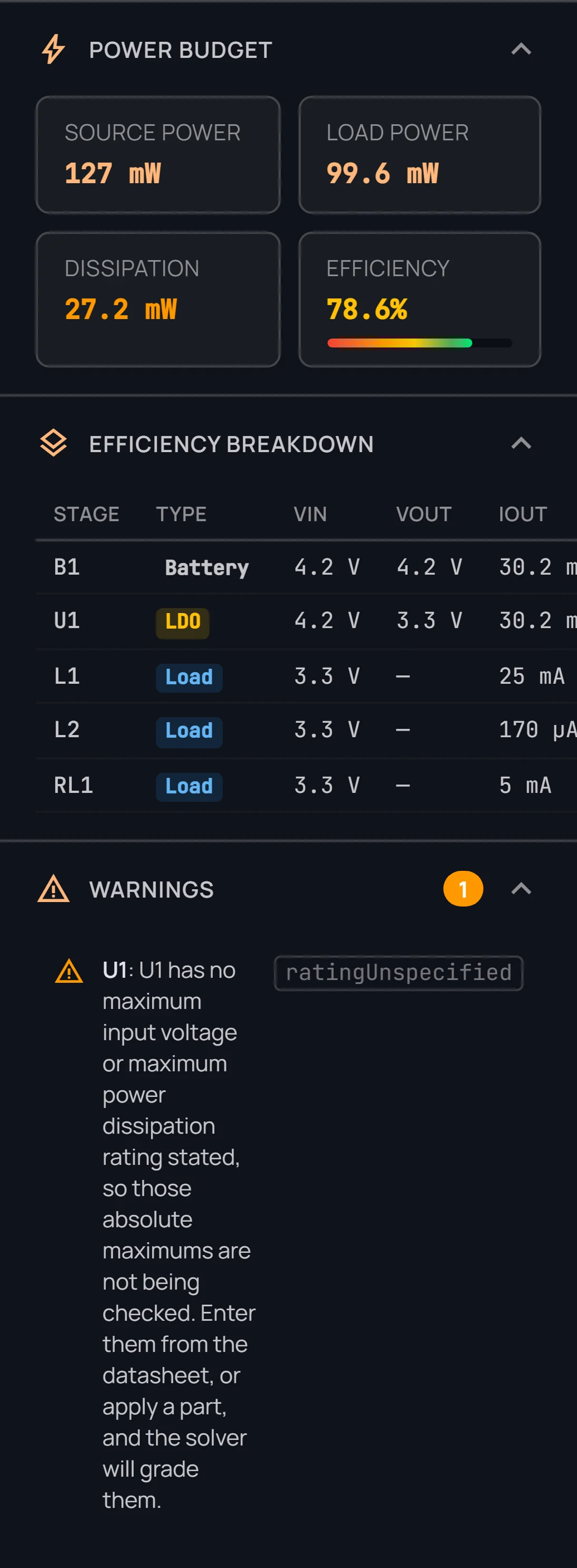
The analysis panel (below the component library) updates in real time as you build:

Power analysis dashboard
  • Power Budget — Shows total source power, load power, dissipation losses, and system-wide efficiency at a glance.
  • Efficiency Breakdown — A per-stage table showing each regulator's input/output voltage, output current, dissipation, and individual efficiency.
  • Warnings — Flags issues like thermal limit violations, voltage drops below thresholds, or missing connections. Green checkmark (✓) means the system is healthy.
lightbulb Overheating components glow orange or red on the canvas. Click them to see thermal details.
6

Finding Real Parts

Search for real components, compare options, and apply to your design

expand_more

Select a regulator (LDO or SMPS) and click 🔍 Find Parts in the Properties panel to search for real components:

  • Automatic requirements — The search pre-fills Vin, Vout, and Iout from your component's properties.
  • Trade-Space Sliders — Balance your priorities: size, weight, power efficiency, cost, and availability. The search results re-rank in real time.
  • AI Recommendations — If you configure an AI API key (Settings → AI Provider), you'll get intelligent part suggestions based on your full design context.
  • Apply a Part — Click "Apply" next to any search result to populate the component with real-world parameters (MPN, manufacturer, package, etc.).
7

Tolerance & Monte Carlo Analysis

Worst-case analysis and statistical simulation

expand_more

Real components have manufacturing tolerances. DC Power Architect lets you model these:

  • Tolerance Mode (toolbar dropdown) — Switch between Nominal (Nom), Minimum (Min), and Maximum (Max) to see how your design performs at the extremes.
  • Component Tolerances — In the Properties panel, add ±% tolerances to voltage, current, and resistance values.
  • Monte Carlo (MC) button — Runs thousands of randomized simulations. Each run varies every tolerance within its range. You'll see:
  1. Summary Cards — Median power, 99th percentile power, median efficiency, and worst-case efficiency.
  2. Histograms — Voltage, current, power dissipation, and temperature distributions for each component.
  3. Export — Download results as CSV for further analysis, or as a formatted PDF report.
8

Saving & Exporting

Local files, cloud storage, PDF, images, and BOM export

expand_more

Multiple ways to save and share your designs:

  • Local Save/Load — Save as a .JSON file to your computer. Works without an account.
  • Cloud Save (requires sign-in) — Save designs to the cloud and access them from any device. Free tier: up to 3 designs. Pro tier: unlimited.
  • Export BOM — Generate a Bill of Materials spreadsheet listing all components, their values, MPN, manufacturer, and quantity.
  • Export Image — Download your power tree as a high-resolution PNG or SVG. Configurable to match the current theme or force light/dark mode.
  • Print / PDF — Print your design or save as PDF via the browser's print dialog. Supports document settings (page size, orientation, margins).
lightbulb Use Page Setup (gear icon in toolbar) to configure the page size, orientation, and export theme before printing.
9

Sheets & Organization

Multi-sheet designs and off-page connectors

expand_more

Large designs can be split across multiple sheets for clarity:

  • Sheet Tabs — The tab bar at the bottom of the canvas lets you add, rename, and switch between sheets.
  • Add Sheet — Click the + button in the tab bar. Right-click a tab to rename or delete it.
  • Off-Page Connectors — Use the Off-Page connector component to link signals between sheets. Name them identically on each sheet to establish the connection.
  • Presentation Mode — Click the presentation icon in the toolbar to enter a clean, full-screen view of your design for reviews or demos.
10

Account & Billing

Sign in, Free vs Pro, and subscription management

expand_more

Sign in to unlock cloud features and personalize your experience:

  • Sign In — Click "Sign In" in the top-right toolbar. Supported methods: Google or email/password.
  • Free Tier — Up to 3 cloud saves, ad-supported, access to all core design and analysis features.
  • Pro Tier ($9/mo) — Unlimited cloud saves, no ads, priority support, and advanced analysis features.
  • Manage Subscription — Go to Account Settings → Customer Support → Manage Subscription to view billing, update payment, or cancel.
  • Delete Account — Account Settings → Customer Support → Delete Account. This permanently removes all data including cloud designs.
11

Keyboard Shortcuts

Quick reference for power users

expand_more
ActionShortcut
Select allCtrl+A
Copy / Paste / CutCtrl+C / V / X
DuplicateCtrl+D
Undo / RedoCtrl+Z / Y
Delete selectedDelete
Zoom in / outScroll wheel
Pan canvasMiddle-click drag or Alt+drag
Fit to viewClick fit icon in toolbar
Align to gridT
Show shortcuts?
12

AI Analysis

AI-powered design explanations and architecture suggestions

expand_more

DC Power Architect includes AI-powered analysis tools to help you understand and improve your designs:

  • ✨ Explain My Design — Click the Explain button in the toolbar to get an AI-generated summary of your power architecture, including efficiency analysis, thermal concerns, and improvement suggestions ranked by severity.
  • 💡 Suggest Architecture — Click the Suggest button to receive AI-recommended topology changes, alternative component choices, and reliability improvements.
  • Suggestion Cards — Each suggestion is displayed as a card with a severity badge (info, warning, critical), a confidence score, and a detailed explanation. Dismiss cards as you address them.
  • Enable / Disable — Toggle the AI features on or off from the Settings panel (gear icon in toolbar) using the "AI Features" switch.
lightbulb Free accounts include 3 AI analysis calls. Pro subscribers get unlimited AI analysis. Your remaining call count resets if you upgrade.

☁️ Cloud Designs

Loading designs...

Loading shared designs...

Select a team to view designs.

shareShare Design


People with access

No shares yet

groupsTeam Settings

Invite Member

Members

Loading...


📋 Activity Log

Loading...


Team Settings

Danger Zone

Transfer ownership to another member:

group_addCreate Team

Create a team workspace to collaborate with others. Team members get access to all Pro features.

Team Plan $15/mo per seat

All Pro features included · Unlimited cloud saves · Shared design library

info Upgrading from Pro

Your current Pro subscription ($9/mo) will be automatically cancelled. Any unused time will be credited toward your first Team bill, so you won't be charged twice.

auto_awesomeAI Insights

Analyzing your design...
error_outline
description Summary

Suggestions

shield AI analysis powered by Gemini. Design data processed securely and not stored.
DC Power Architect

Welcome to DC Power Architect

Design, simulate, and analyze DC power systems with real-time feedback

play_circle

Get Started

dashboard

Start with a Template